Migrate Account
In our ongoing efforts to provide you with a secure, modern cloud-based access control system, VOLO now supports MFA (Multi-Factor Authentication).
When adding MFA to VOLO, we wanted to ensure that the whole operator authentication process was as secure as possible. So, when enabling MFA, you will also be required to migrate your account to a new authentication platform, with increased security measures.
info
All new operators will be created on the new platform by default.
This article describes how to perform the initial migration, and the process for configuring MFA can be found here.
tip
You may wish to install an Authenticator App before starting the migration process. It will be required to complete Stage 2, and to enable MFA on your account.
Use this link if you need help setting this up: MFA Authenticator App.
Migrating Account
This process only takes a few minutes to carry out, and there is no deadline at this time, so it can be done at any convenient time.
The process starts by signing in to VOLO and then either:
selecting the
Migrate Account and MFAoption from the top navigation bar, or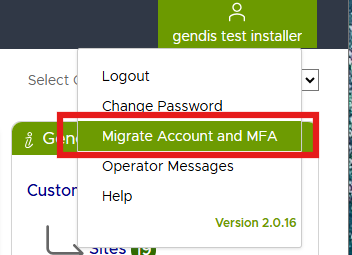
clicking on the
Migrate Account and MFAbutton on the Operator Details page.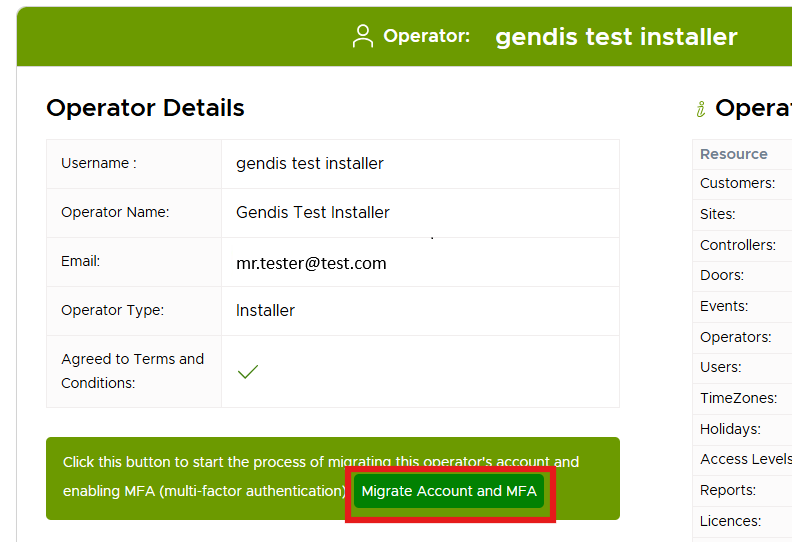
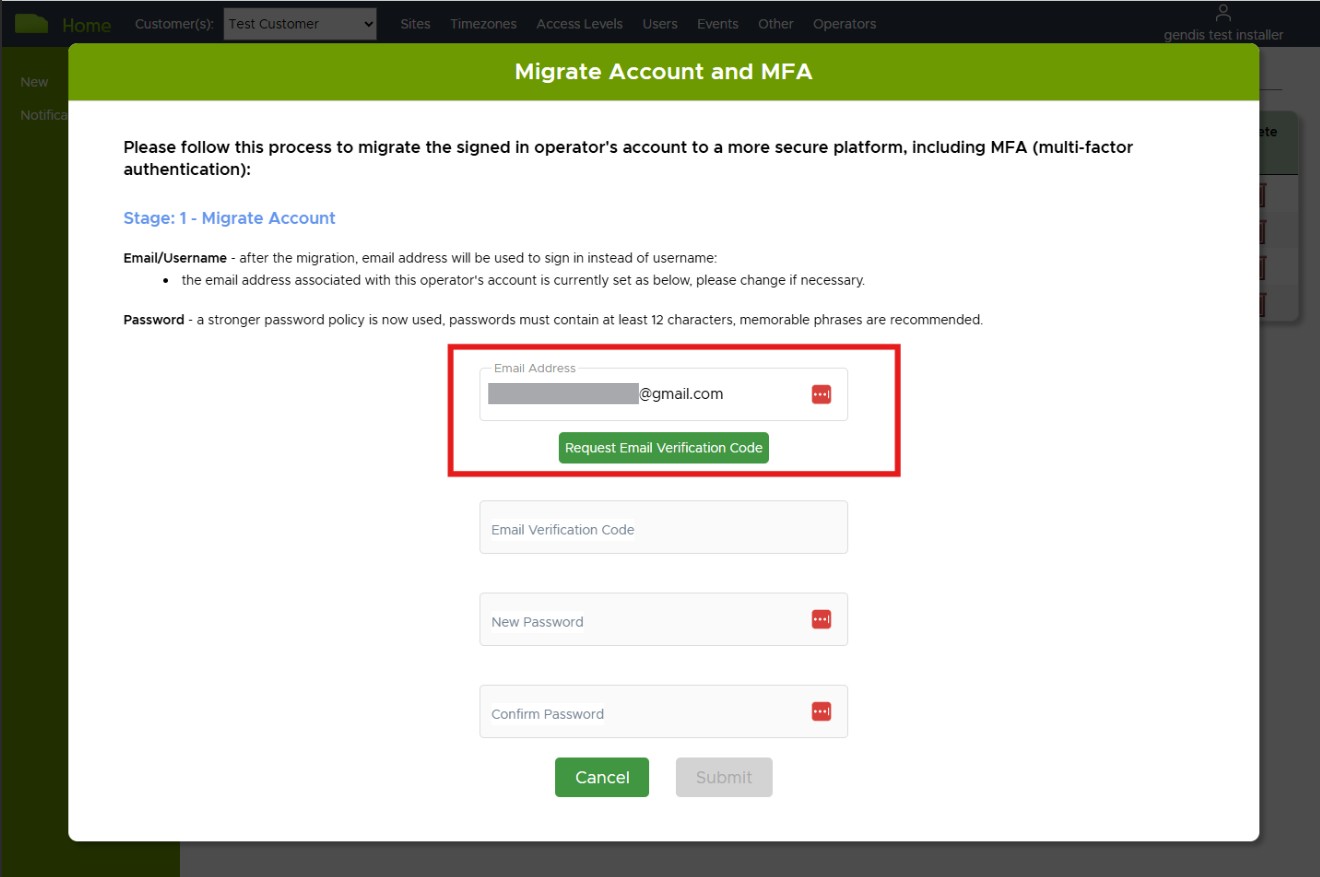
A pop-up window will open to take you through Stage 1 of the account migration process. The email address linked to your account will be displayed in the window.
tip
You can continue with the existing email address or change it to a different one at this stage.
Confirm that the address is correct, and then click on Request Email Verification Code.
caution
Once your account is migrated, you will need to use your email as your username when signing in. We validate your email to ensure that you won't have any difficulties logging in after the migration.
Your existing/old username will not be required after the migration.
You should receive an email with a verification code.
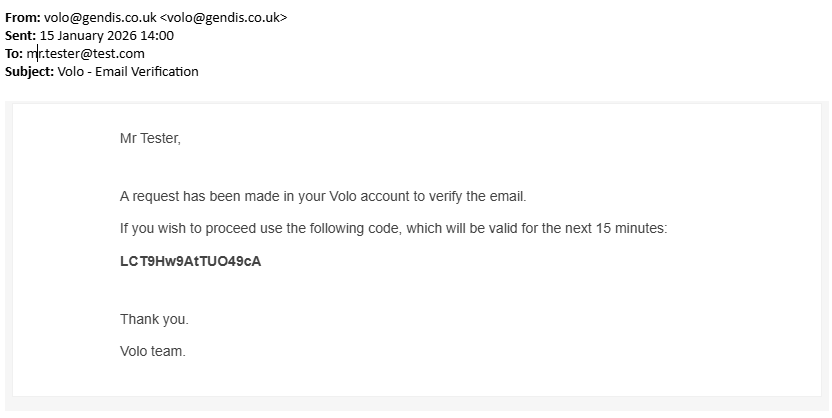
Returning to Volo, enter the verification code from the email, and set a new password.
tip
The password policy on the new platform is stronger than before. The recommended best practice is to use a memorable phrase (with spaces) rather than a single word with special characters.
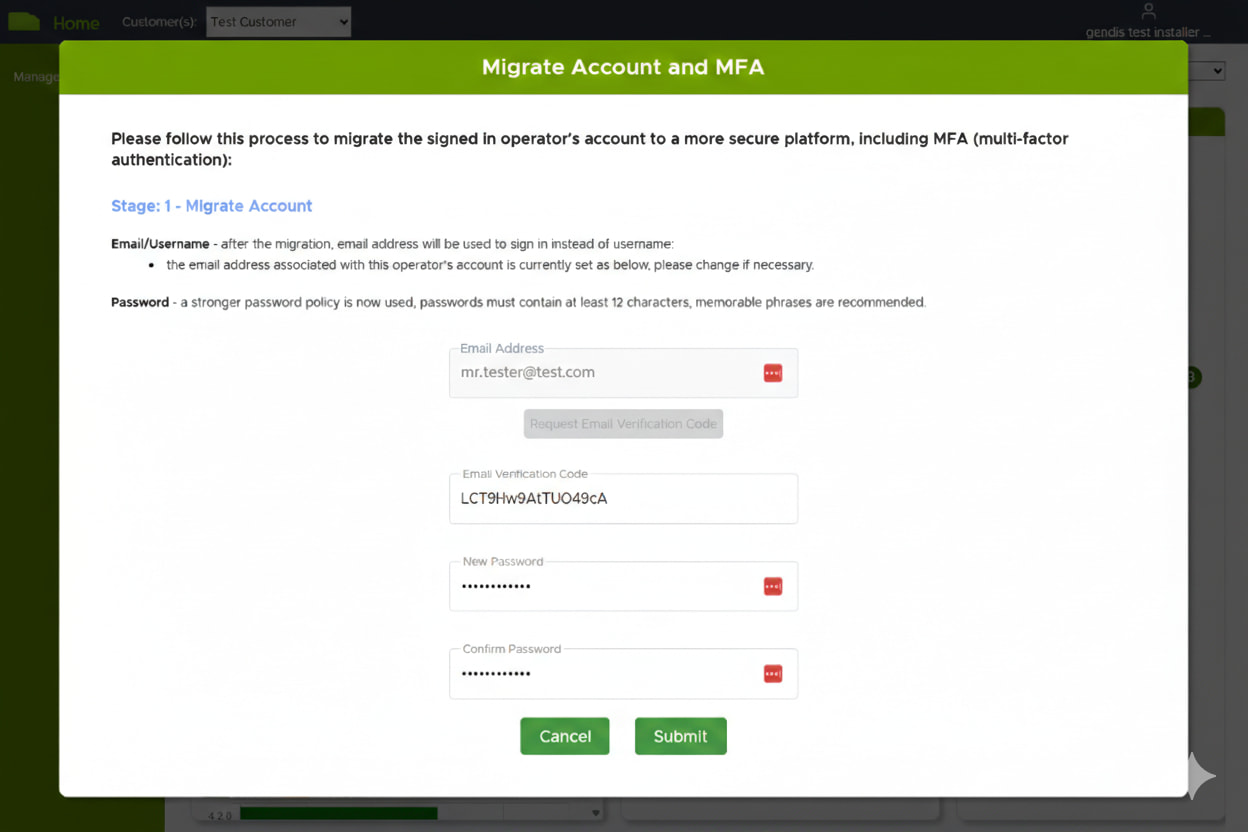
If all details have been entered correctly, you will proceed to Stage 2 of the migration process MFA.